विज्ञापन / Advertisement
MS PowerPoint Insert Tab
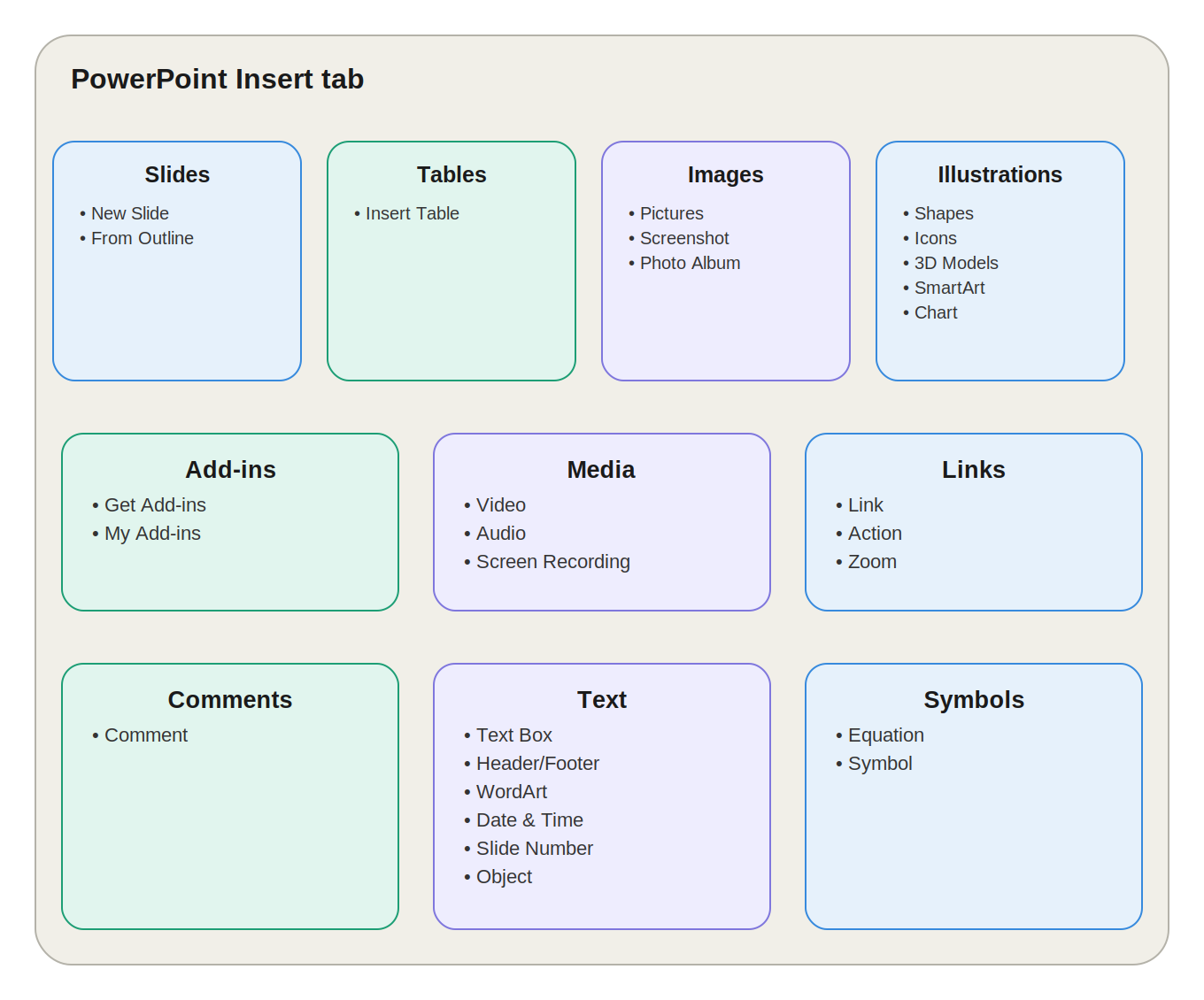
MS PowerPoint का Insert Tab, Home Tab के बाद आता है। इसका मुख्य उपयोग Slide में नए Elements और Objects जोड़ने के लिए किया जाता है।
Insert Tab की मदद से हम Presentation में:
-
Tables
-
Pictures
-
Screenshots
-
Shapes
-
Icons
-
SmartArt
-
Charts
-
Videos
-
Audio
-
Links
-
Text Boxes
-
WordArt
-
Equations
-
Symbols
आदि Insert कर सकते हैं।
PowerPoint के Insert Tab में मुख्य रूप से 10 Groups होते हैं:
-
Slides
-
Tables
-
Images
-
Illustrations
-
Add-ins
-
Media
-
Links
-
Comments
-
Text
-
Symbols
1. Slides Group
Slides Group का उपयोग Presentation में नई Slides जोड़ने और कुछ versions में Outline से Slides बनाने के लिए किया जाता है।
New Slide
New Slide का उपयोग नई Slide Insert करने के लिए किया जाता है।
इसके dropdown से आवश्यकता के अनुसार Slide Layout चुना जा सकता है।
उदाहरण:
-
Title Slide
-
Title and Content
-
Two Content
-
Comparison
-
Blank
Shortcut
Ctrl + M → New Slide
Slide from Outline
कुछ PowerPoint versions में Slide from Outline option उपलब्ध होता है।
इसका उपयोग किसी Text Outline या Word Document से automatically Slides बनाने के लिए किया जा सकता है।
Heading Levels के आधार पर Slide structure तैयार हो सकता है।
Example:
यदि Word Document में अलग-अलग headings और subheadings हैं, तो उनसे Presentation की Slides तैयार की जा सकती हैं।
2. Tables Group
Table
Table का उपयोग Slide में Rows और Columns वाली Table Insert करने के लिए किया जाता है।
Table Insert करने के लिए:
-
Grid से Rows/Columns select कर सकते हैं।
-
Insert Table option का उपयोग कर सकते हैं।
-
कुछ versions में Draw Table भी उपलब्ध होता है।
-
Excel Spreadsheet को भी Slide में embed किया जा सकता है।
Example
यदि आपको Presentation में Sales Data दिखाना है:
| Product | Sales | Target |
|---|---|---|
| Product A | 500 | 600 |
| Product B | 700 | 650 |
तो Table का उपयोग कर सकते हैं।
3. Images Group
Images Group का उपयोग Presentation में Images और Screenshots जोड़ने के लिए किया जाता है।
इसके मुख्य options हैं:
-
Pictures
-
Screenshot
-
Photo Album
1. Pictures
Pictures option से Slide में Image Insert की जा सकती है।
Image विभिन्न sources से ली जा सकती है, जैसे:
-
Computer/Device
-
Stock Images
-
Online Sources
Example:
Computer Presentation में CPU की image जोड़ना।
2. Screenshot
Screenshot का उपयोग किसी अन्य open window का Screenshot लेकर उसे Slide में Insert करने के लिए किया जाता है।
इसमें Screen Clipping के माध्यम से screen के किसी specific हिस्से को भी capture किया जा सकता है।
Example
किसी Software की setting समझाने के लिए उसकी screen का Screenshot सीधे Presentation में जोड़ना।
3. Photo Album
Photo Album का उपयोग बहुत सारी Photos को automatically Slides में arrange करके Presentation बनाने के लिए किया जाता है।
यह विशेष रूप से उपयोगी है जब आपको एक साथ बहुत सारी Photos की Presentation बनानी हो।
Example
किसी School Event की 50 Photos को manually एक-एक Slide पर लगाने के बजाय Photo Album का उपयोग करके जल्दी Presentation तैयार की जा सकती है।
4. Illustrations Group
Illustrations Group का उपयोग Slide में विभिन्न Visual Objects और Graphics Insert करने के लिए किया जाता है।
इसके मुख्य options हैं:
-
Shapes
-
Icons
-
3D Models
-
SmartArt
-
Chart
1. Shapes
Shapes से Slide में विभिन्न प्रकार के graphical objects बनाए जा सकते हैं।
जैसे:
-
Rectangle
-
Circle
-
Arrow
-
Line
-
Star
-
Callout
-
Flowchart Shapes
Example
Process Flowchart बनाने के लिए Shapes का उपयोग किया जा सकता है।
2. Icons
Icons छोटे graphical symbols होते हैं जिन्हें Slide में Insert किया जा सकता है।
इनका उपयोग:
-
People
-
Objects
-
Technology
-
Communication
-
Business
-
Education
जैसे topics को visually represent करने के लिए किया जा सकता है।
Important Point
Icons सामान्य Photos की तुलना में scalable vector graphics हो सकते हैं, इसलिए उनका आकार बदलने पर quality अच्छी रह सकती है।
3. 3D Models
3D Models का उपयोग Slide में तीन-dimensional objects Insert करने के लिए किया जाता है।
इन Objects को उपलब्ध controls के अनुसार rotate और view किया जा सकता है।
Example
Science Presentation में Human Body या किसी Machine का 3D Model दिखाना।
4. SmartArt
SmartArt का उपयोग Information को visual diagram के रूप में दिखाने के लिए किया जाता है।
इससे आप बना सकते हैं:
-
Process
-
Cycle
-
Hierarchy
-
List
-
Relationship
-
Organization Chart
Example
Management Structure:
CEO → Manager → Team Leader → Employees
इसे SmartArt के माध्यम से visually दिखाया जा सकता है।
5. Chart
Chart का उपयोग Numerical/Data Information को graphical form में दिखाने के लिए किया जाता है।
उदाहरण:
-
Column Chart
-
Bar Chart
-
Line Chart
-
Pie Chart
-
Area Chart
Chart का Data सामान्यतः embedded spreadsheet के माध्यम से manage किया जा सकता है।
Example
Monthly Sales को Column Chart के माध्यम से दिखाना।
5. Add-ins Group
Add-ins PowerPoint में अतिरिक्त functionality उपलब्ध कराने वाले extensions/tools होते हैं।
इस Group में मुख्य options हैं:
1. Get Add-ins
Get Add-ins से उपलब्ध Add-ins को browse और install किया जा सकता है।
2. My Add-ins
My Add-ins में पहले से installed Add-ins तक जल्दी access किया जा सकता है।
Example
किसी विशेष productivity या presentation tool की functionality PowerPoint में जोड़ने के लिए Add-in का उपयोग किया जा सकता है।
6. Media Group
Media Group का उपयोग Presentation में Video, Audio और Screen Recording जोड़ने के लिए किया जाता है।
इसके मुख्य options हैं:
-
Video
-
Audio
-
Screen Recording
1. Video
Video option से Presentation में Video Insert किया जा सकता है।
Video source और उपलब्ध features PowerPoint version के अनुसार अलग हो सकते हैं।
Example
Educational Presentation में किसी topic की demonstration video जोड़ना।
2. Audio
Audio का उपयोग Slide में Audio Clip Insert करने के लिए किया जाता है।
Audio का उपयोग:
-
Narration
-
Background Music
-
Explanation
-
Sound Effects
के लिए किया जा सकता है।
इसके Playback settings में उपलब्ध options के अनुसार Audio को Automatically या On Click चलाया जा सकता है।
3. Screen Recording
Screen Recording PowerPoint के अंदर ही Computer Screen को record करने की सुविधा देता है।
Recorded content को Slide में Video Clip के रूप में Insert किया जा सकता है।
Example
यदि आपको किसी Software का Demo Presentation में दिखाना है, तो Screen Recording से सीधे उस process को record करके Slide में जोड़ सकते हैं।
7. Links Group
Links Group का उपयोग Presentation में Hyperlinks और Interactive Navigation बनाने के लिए किया जाता है।
इसके मुख्य options हैं:
-
Link
-
Action
-
Zoom
1. Link
Link का उपयोग किसी Text या Object को किसी दूसरे destination से connect करने के लिए किया जाता है।
यह link हो सकता है:
-
Website
-
File
-
Email
-
Another Slide
Shortcut
Ctrl + K → Insert Link
Example
Slide पर "Visit Website" Text देकर उसे किसी Website से Link करना।
2. Action
Action किसी Object पर Click या Mouse Hover करने पर कोई specific action perform करने के लिए उपयोग किया जाता है।
उदाहरण:
-
दूसरी Slide पर जाना
-
File खोलना
-
Program चलाना
-
Sound Play करना
इससे Shapes या Images को interactive बनाया जा सकता है।
3. Zoom
PowerPoint का Zoom feature Presentation को interactive और non-linear बनाने में मदद करता है।
इसके प्रकार हो सकते हैं:
-
Summary Zoom
-
Slide Zoom
-
Section Zoom
Example
Presentation के एक Menu Slide से आप सीधे:
Introduction → Data → Conclusion
में से किसी भी Section पर जा सकते हैं।
8. Comments Group
Comment
Comment का उपयोग Slide या किसी specific Object पर feedback या note जोड़ने के लिए किया जाता है।
यह विशेष रूप से Collaborative Presentation Editing में उपयोगी है।
Example
एक Team Member लिख सकता है:
"इस Slide में latest data update करें."
दूसरा Member उस Comment को देखकर required changes कर सकता है।
9. Text Group
Text Group का उपयोग Slide में अलग-अलग प्रकार का Text और Text-related information जोड़ने के लिए किया जाता है।
इसके मुख्य options हैं:
-
Text Box
-
Header & Footer
-
WordArt
-
Date & Time
-
Slide Number
-
Object
1. Text Box
Text Box एक movable और resizable box होता है जिसमें Text लिखा जा सकता है।
Example
Slide पर किसी specific location पर अलग से:
Important Note
लिखने के लिए Text Box का उपयोग किया जा सकता है।
2. Header & Footer
Header & Footer के माध्यम से Slides पर कुछ repeating information add की जा सकती है।
जैसे:
-
Date
-
Footer Text
-
Slide Number
कुछ settings में Notes और Handouts के लिए भी Header/Footer options मिलते हैं।
3. WordArt
WordArt का उपयोग decorative और stylized Text बनाने के लिए किया जाता है।
Example
Presentation का Title अधिक attractive बनाने के लिए WordArt उपयोग कर सकते हैं।
4. Date & Time
Date & Time option से Slide पर Date और Time Insert किया जा सकता है।
Date को manually या available settings के अनुसार automatically update होने के लिए configure किया जा सकता है।
5. Slide Number
Slide Number का उपयोग Slides पर automatic Slide Number दिखाने के लिए किया जाता है।
Example
Presentation:
Slide 1, Slide 2, Slide 3...
6. Object
Object का उपयोग किसी दूसरी application की file या object को Presentation में Embed करने के लिए किया जा सकता है।
Example
PowerPoint Slide में एक Excel Worksheet को embedded object के रूप में जोड़ना।
10. Symbols Group
Symbols Group का उपयोग Mathematical Equations और Special Characters Insert करने के लिए किया जाता है।
इसके मुख्य options हैं:
-
Equation
-
Symbol
1. Equation
Equation का उपयोग Mathematical Formulas और Equations लिखने के लिए किया जाता है।
Example
Mathematics Presentation में:
A² + B² = C²
जैसी equation insert करना।
2. Symbol
Symbol का उपयोग ऐसे Special Characters Insert करने के लिए किया जाता है जो सामान्य Keyboard पर आसानी से उपलब्ध नहीं होते।
उदाहरण:
-
©
-
®
-
™
-
±
-
µ
-
Ω
आदि।
PowerPoint Insert Tab – Quick Revision
| Group | मुख्य कार्य |
|---|---|
| Slides | New Slide और Outline से Slides |
| Tables | Table और Excel Spreadsheet |
| Images | Pictures, Screenshot, Photo Album |
| Illustrations | Shapes, Icons, 3D Models, SmartArt, Chart |
| Add-ins | Add-ins Install और Manage |
| Media | Video, Audio, Screen Recording |
| Links | Link, Action और Zoom |
| Comments | Comments और Feedback |
| Text | Text Box, WordArt, Date, Slide Number, Object |
| Symbols | Equation और Symbol |
PowerPoint Insert Tab और Word Insert Tab में अंतर
| Feature | MS Word | MS PowerPoint |
|---|---|---|
| Tables | ✓ | ✓ |
| Pictures | ✓ | ✓ |
| Shapes | ✓ | ✓ |
| SmartArt | ✓ | ✓ |
| Chart | ✓ | ✓ |
| Links | ✓ | ✓ |
| Comments | ✓ | ✓ |
| Text Box | ✓ | ✓ |
| WordArt | ✓ | ✓ |
| Equation | ✓ | ✓ |
| Symbol | ✓ | ✓ |
| Photo Album | — | ✓ |
| Summary/Slide/Section Zoom | — | ✓ |
| Screen Recording | — | ✓ |
| Audio/Video | उपलब्ध | अधिक presentation-focused |
मुख्य अंतर
Word Insert Tab → Document में Content Insert करने पर focus
PowerPoint Insert Tab → Slide में Visual, Multimedia और Interactive Elements जोड़ने पर focus
Insert Tab के Practical Uses
1. Photo Presentation बनानी है
Photo Album का उपयोग करके कई Photos से जल्दी Presentation बनाई जा सकती है।
2. Software Demo दिखाना है
Screen Recording से Screen को record करके Presentation में Video के रूप में Insert किया जा सकता है।
3. Data को Visual बनाना है
Chart का उपयोग करके Numerical Data को Graph के रूप में दिखा सकते हैं।
4. Process समझाना है
SmartArt का उपयोग करके Process या Hierarchy को visual form में दिखाया जा सकता है।
5. Interactive Presentation बनानी है
Action और Zoom की मदद से Presentation में non-linear navigation बनाई जा सकती है।
6. External Website जोड़नी है
Link (Ctrl + K) से Website को Slide के Text या Object से connect किया जा सकता है।
Exam Points – PowerPoint Insert Tab
-
Insert Tab का उपयोग Slide में नए Elements जोड़ने के लिए किया जाता है।
-
Insert Tab में मुख्य रूप से 10 Groups होते हैं।
-
New Slide Slides Group में होता है।
-
Table Tables Group में होता है।
-
Pictures, Screenshot और Photo Album Images Group में होते हैं।
-
Shapes, Icons, 3D Models, SmartArt और Chart Illustrations Group के प्रमुख options हैं।
-
Get Add-ins का उपयोग Add-ins प्राप्त करने के लिए किया जाता है।
-
Video, Audio और Screen Recording Media Group में होते हैं।
-
Link, Action और Zoom Links Group में होते हैं।
-
Ctrl + K Link/Hyperlink insert करने की महत्वपूर्ण shortcut key है।
-
Comment Comments Group में होता है।
-
Text Box, WordArt और Slide Number Text Group में होते हैं।
-
Equation और Symbol Symbols Group में होते हैं।
-
Photo Album कई Photos से Presentation बनाने में उपयोगी है।
-
Screen Recording Screen को record करके Presentation में Video के रूप में Insert कर सकता है।
-
SmartArt Information को visual diagram में प्रस्तुत करने के लिए उपयोगी है।
-
Chart Numerical Data को graphical form में दिखाता है।
-
Zoom Presentation में interactive navigation बनाने में उपयोगी है।
-
Action किसी Object को interactive trigger बनाने में मदद करता है।
-
Object के माध्यम से दूसरी application का object/file Presentation में embed किया जा सकता है।
Quick One-Liners
-
New Slide → नई Slide Insert करने के लिए।
-
Table → Rows और Columns वाली Table बनाने के लिए।
-
Pictures → Slide में Images जोड़ने के लिए।
-
Screenshot → Open Window या Screen के किसी हिस्से का capture Insert करने के लिए।
-
Photo Album → कई Photos से automatically Slides बनाने के लिए।
-
Shapes → Lines, Arrows, Rectangles और अन्य Shapes बनाने के लिए।
-
Icons → Scalable graphical symbols Insert करने के लिए।
-
3D Models → Three-dimensional Objects Insert करने के लिए।
-
SmartArt → Information को Visual Diagram में बदलने के लिए।
-
Chart → Data को Graphical form में दिखाने के लिए।
-
Get Add-ins → नए Add-ins प्राप्त करने के लिए।
-
Video → Presentation में Video जोड़ने के लिए।
-
Audio → Presentation में Sound/Audio जोड़ने के लिए।
-
Screen Recording → Screen को record करके Video Insert करने के लिए।
-
Link → Website, File या दूसरी Slide से connect करने के लिए।
-
Action → Object पर Click/Hover होने पर Action perform करने के लिए।
-
Zoom → Presentation में Interactive Navigation बनाने के लिए।
-
Comment → Slide पर Feedback या Note जोड़ने के लिए।
-
Text Box → Slide पर movable Text area बनाने के लिए।
-
WordArt → Decorative और Stylish Text बनाने के लिए।
-
Slide Number → Slides पर Automatic Number दिखाने के लिए।
-
Object → दूसरी application की File/Object को Embed करने के लिए।
-
Equation → Mathematical Formula Insert करने के लिए।
-
Symbol → Special Characters Insert करने के लिए।
सबसे Important One-Liner
PowerPoint Insert Tab = Slide में Text + Images + Tables + Shapes + SmartArt + Charts + Audio/Video + Links + Comments + Symbols जोड़ने का Tab।
PowerPoint Insert Tab FAQ
1. PowerPoint में Insert Tab का क्या उपयोग है?
Insert Tab का उपयोग Presentation की Slides में Images, Tables, Shapes, Charts, SmartArt, Audio, Video, Links, Text और Symbols जैसे नए Elements जोड़ने के लिए किया जाता है।
2. PowerPoint Insert Tab में कितने मुख्य Groups होते हैं?
PowerPoint Insert Tab में सामान्यतः 10 Groups होते हैं:
Slides, Tables, Images, Illustrations, Add-ins, Media, Links, Comments, Text और Symbols.
3. Photo Album का क्या उपयोग है?
Photo Album कई Photos को automatically arrange करके Slides या Presentation बनाने में मदद करता है।
4. PowerPoint में Screen Recording कहाँ होती है?
Screen Recording, Insert Tab के Media Group में होती है।
5. Screen Recording का क्या उपयोग है?
Screen Recording का उपयोग Computer Screen की activity को record करके उसे Presentation में Video Clip के रूप में Insert करने के लिए किया जाता है।
6. PowerPoint में Hyperlink की Shortcut Key क्या है?
Ctrl + K Hyperlink/Link Insert करने की shortcut key है।
7. Zoom और Hyperlink में क्या अंतर है?
Hyperlink किसी fixed destination पर jump करता है, जबकि PowerPoint का Zoom Presentation के Sections, Slides या Summary के बीच interactive navigation उपलब्ध कराता है।
8. क्या PowerPoint में Excel Spreadsheet Insert कर सकते हैं?
हाँ। Table के Excel Spreadsheet option या Object के माध्यम से Excel content को Presentation में embed किया जा सकता है।
9. SmartArt का क्या उपयोग है?
SmartArt का उपयोग सामान्य Text या List को Process, Hierarchy, Cycle, Relationship आदि के visual diagram में बदलने के लिए किया जाता है।
10. Chart का क्या उपयोग है?
Chart का उपयोग Numerical Data को Bar, Line, Pie, Column आदि graphical formats में दिखाने के लिए किया जाता है।
11. Action option क्या करता है?
Action किसी Text, Shape या Image को interactive बनाता है। Click या Mouse Hover पर दूसरी Slide, File, Program या Sound जैसी Action perform की जा सकती है।
12. Audio को Presentation में automatically चला सकते हैं?
हाँ। Audio Insert करने के बाद उपलब्ध Playback Options में Audio को Automatically या On Click जैसे तरीके से चलाने के लिए configure किया जा सकता है।
13. Header & Footer का क्या उपयोग है?
Header & Footer के माध्यम से Slides में Date, Footer Text और Slide Number जैसी information add की जा सकती है।
14. Equation और Symbol में क्या अंतर है?
Equation का उपयोग Mathematical Formulas के लिए होता है, जबकि Symbol का उपयोग Special Characters Insert करने के लिए किया जाता है।
15. PowerPoint में Comment का क्या उपयोग है?
Comment का उपयोग Slide या Object पर Feedback, Suggestion या Review Note जोड़ने के लिए किया जाता है।
16. PowerPoint में Slide Number कहाँ से Insert किया जाता है?
Insert Tab → Text Group → Slide Number से Slide Number Insert किया जा सकता है।
17. PowerPoint में Video और Audio किस Group में होते हैं?
Media Group में Video और Audio options होते हैं।
18. PowerPoint में Shapes किस Group में होते हैं?
Insert Tab में Shapes, Illustrations Group में होते हैं।
19. Photo Album और Screenshot में क्या अंतर है?
Photo Album कई Photos से Slides बनाने के लिए उपयोग होता है, जबकि Screenshot Computer Screen या Open Window की image capture करने के लिए उपयोग होता है।
20. PowerPoint Insert Tab का मुख्य उद्देश्य क्या है?
Slide में नए Content, Visual Elements, Multimedia और Interactive Objects जोड़ना PowerPoint Insert Tab का मुख्य उद्देश्य है।
विज्ञापन / Advertisement
💬 Leave a Comment & Rating