विज्ञापन / Advertisement
MS PowerPoint Design Tab
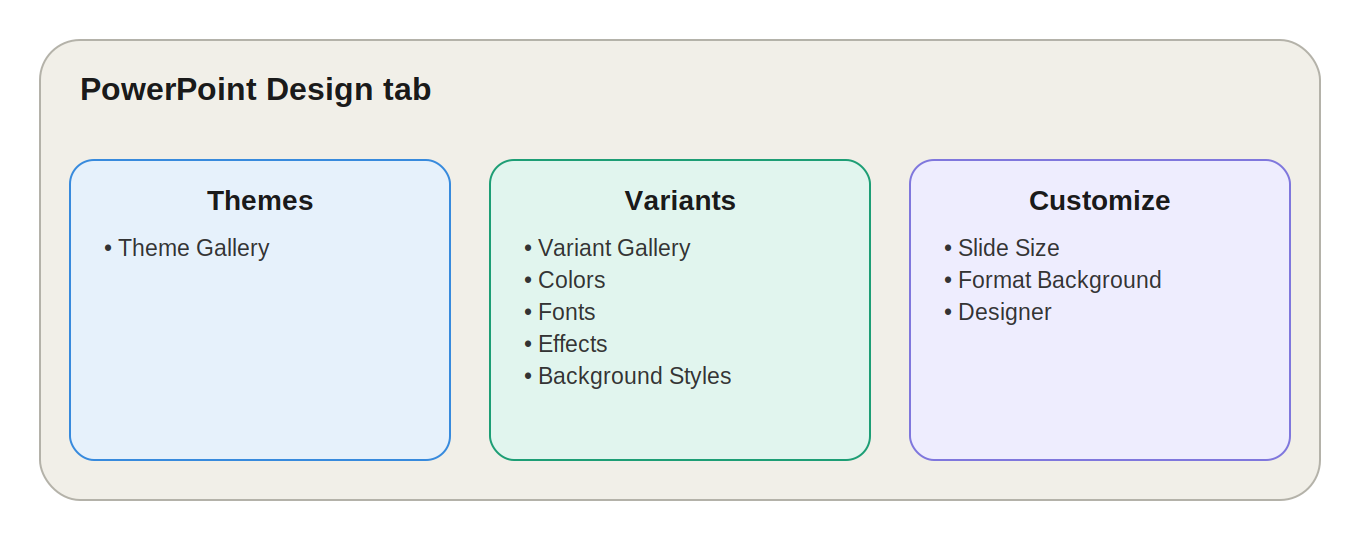
PowerPoint Design Tab का उपयोग Presentation के overall look, theme, colors, fonts, background और slide size को customize करने के लिए किया जाता है।
यह Tab Insert Tab के बाद आता है। PowerPoint में Presentation का visual appearance बहुत महत्वपूर्ण होता है, इसलिए Design Tab का उपयोग लगभग हर professional presentation में किया जाता है।
Design Tab में मुख्य रूप से 3 Groups होते हैं:
-
Themes
-
Variants
-
Customize
1. Themes Group
Themes Group का उपयोग पूरी Presentation के लिए एक common design चुनने के लिए किया जाता है।
Theme Gallery
Theme Gallery में कई predefined themes उपलब्ध होती हैं, जैसे:
-
Facet
-
Ion
-
Berlin
-
Retrospect
-
और अन्य built-in themes
एक Theme में सामान्यतः ये चीजें शामिल होती हैं:
-
Fonts
-
Colors
-
Background Graphics
-
Placeholder Layouts
-
Visual Style
जब आप कोई Theme select करते हैं, तो उसका design पूरी Presentation की slides पर लागू हो सकता है।
उदाहरण
मान लीजिए आपने एक Presentation में 10 slides बनाई हैं और बाद में Ion Theme select किया।
तो Theme के अनुसार पूरी Presentation का:
-
Font
-
Color Scheme
-
Background
-
Slide appearance
एक consistent style में बदल सकता है।
Exam Point
Theme पूरी Presentation के overall design को control करता है।
2. Variants Group
Variants Group का उपयोग selected Theme को बदले बिना उसके colors और visual style को customize करने के लिए किया जाता है।
Variant Gallery
जब आप कोई Theme select करते हैं, तो उसके साथ कई Variants दिखाई देते हैं।
Variants में सामान्यतः अलग-अलग:
-
Color combinations
-
Background shades
-
Accent colors
-
Visual styles
हो सकते हैं।
इससे Theme की मूल design structure को बदले बिना Presentation का appearance बदला जा सकता है।
Colors
Colors option से Presentation की Theme Color Palette बदली जा सकती है।
इसमें बदल सकते हैं:
-
Accent Colors
-
Text Colors
-
Background Colors
-
Hyperlink Colors
उदाहरण
अगर आपकी company का brand color Blue है, तो आप Theme को बदलने की बजाय Colors से Blue-based color scheme select कर सकते हैं।
Exam Point
Colors option Theme की color palette को बदलता है।
Fonts
Fonts option से Presentation में इस्तेमाल होने वाले Heading और Body Fonts को बदला जा सकता है।
उदाहरण:
-
Aptos
-
Arial
-
Calibri
-
Times New Roman
आदि।
यह option पूरी Presentation में font consistency बनाए रखने में मदद करता है।
Exam Point
Fonts option Presentation की heading और body font pairing को बदलता है।
Effects
Effects option का उपयोग Shapes और Graphics पर लागू होने वाले visual effects को control करने के लिए किया जाता है।
जैसे:
-
Shadows
-
Bevels
-
3D Effects
-
Shape Effects
Exam Point
Effects option Shapes और Graphics के visual effects को control करता है।
Background Styles
Background Styles से current Theme के अनुसार अलग-अलग background styles apply किए जा सकते हैं।
इससे slide के background का appearance जल्दी बदला जा सकता है।
3. Customize Group
Customize Group में Presentation की Slide Size और Background से संबंधित महत्वपूर्ण options मिलते हैं।
मुख्य options:
-
Slide Size
-
Format Background
-
Designer
Slide Size
Slide Size का उपयोग Presentation की slide का आकार और aspect ratio बदलने के लिए किया जाता है।
मुख्य options:
Standard (4:3)
यह पुराने प्रकार का slide ratio है।
इसका उपयोग पुराने projectors या पुराने display systems में किया जा सकता है।
Widescreen (16:9)
यह modern Presentation के लिए सबसे सामान्य aspect ratio है।
आजकल:
-
Laptop
-
TV
-
Monitor
-
Projector
-
Online Presentation
में 16:9 Widescreen बहुत commonly इस्तेमाल होता है।
Custom Slide Size
जरूरत के अनुसार आप अपनी Presentation के लिए Custom Size भी निर्धारित कर सकते हैं।
Important Point
Slide Size को Presentation शुरू करते समय ही निर्धारित करना बेहतर होता है।
अगर बाद में Slide Size बदला जाता है, तो:
-
Images की position बदल सकती है।
-
Text Boxes shift हो सकते हैं।
-
Shapes की position बदल सकती है।
-
Content stretch या resize हो सकता है।
Exam Point
PowerPoint में Widescreen का सामान्य aspect ratio 16:9 है।
Format Background
Format Background का उपयोग Slide के background को customize करने के लिए किया जाता है।
इसमें अलग-अलग प्रकार के background लगाए जा सकते हैं।
1. Solid Fill
पूरे background में एक single color लगाया जा सकता है।
उदाहरण:
-
White
-
Blue
-
Black
-
Light Grey
2. Gradient Fill
Background में एक से अधिक colors का gradual transition बनाया जा सकता है।
उदाहरण:
Blue → Light Blue
3. Picture or Texture Fill
आप background में:
-
Picture
-
Image
-
Texture
का उपयोग कर सकते हैं।
यह option Title Slide या special presentation slides के लिए उपयोगी है।
4. Pattern Fill
इस option से विभिन्न predefined patterns को background में लगाया जा सकता है।
Apply to All
यदि आप एक ही background को पूरी Presentation की सभी slides पर लगाना चाहते हैं, तो Apply to All का उपयोग किया जाता है।
यदि Apply to All नहीं किया जाता, तो background केवल current slide पर लागू किया जा सकता है।
Exam Point
Format Background का उपयोग Slide के background को customize करने के लिए किया जाता है।
Designer
Designer Microsoft 365 में उपलब्ध एक AI-based feature है।
यह current slide के:
-
Text
-
Images
-
Content
को analyze करके automatically कई professional Design Ideas / Layout Suggestions प्रदान कर सकता है।
उदाहरण
मान लीजिए आपकी slide पर केवल:
"Benefits of Internet"
और कुछ bullet points तथा एक image है।
Designer automatically अलग-अलग layouts suggest कर सकता है, जिससे साधारण slide ज्यादा professional दिखाई दे सकती है।
Designer के फायदे
-
जल्दी professional design तैयार करना
-
Automatic layout suggestions
-
Images की बेहतर positioning
-
Text और graphics का बेहतर arrangement
-
Presentation का visual appearance improve करना
Important Point
Designer की availability PowerPoint के version, Microsoft 365 subscription और connected services पर निर्भर कर सकती है।
PowerPoint Design Tab के सभी Groups – Quick Revision
| Group | मुख्य Options | उपयोग |
|---|---|---|
| Themes | Theme Gallery | पूरी Presentation का Theme बदलना |
| Variants | Variants, Colors, Fonts, Effects, Background Styles | Theme को customize करना |
| Customize | Slide Size, Format Background, Designer | Slide Size, Background और Design Ideas |
Theme और Variant में अंतर
| Theme | Variant |
|---|---|
| पूरी Presentation का core design निर्धारित करता है | Selected Theme का alternate style देता है |
| Fonts, Colors और visual design निर्धारित करता है | मुख्यतः colors और visual appearance में बदलाव करता है |
| Design का base structure | Design का variation |
| पूरी Presentation पर apply हो सकता है | Current Theme के alternate versions देता है |
आसान भाषा में
Theme = पूरी Design
Variant = उसी Design का अलग Style
PowerPoint Design Tab vs Word Design Tab
| Feature | Word Design | PowerPoint Design |
|---|---|---|
| मुख्य उद्देश्य | Document की formatting और design | पूरी Presentation की visual design |
| Theme | उपलब्ध | उपलब्ध |
| Colors | उपलब्ध | उपलब्ध |
| Fonts | उपलब्ध | उपलब्ध |
| Effects | उपलब्ध | उपलब्ध |
| Watermark | उपलब्ध | सामान्यतः अलग तरीके से/background के माध्यम से |
| Page Borders | उपलब्ध | मुख्य feature नहीं |
| Slide Size | नहीं | उपलब्ध |
| Designer | अलग context | PowerPoint में महत्वपूर्ण feature |
Design Tab का Real-Life Example
मान लीजिए आपको Company Annual Report Presentation बनानी है।
Step 1 – Theme
सबसे पहले एक professional Theme select करेंगे।
Step 2 – Colors
Company के brand colors के अनुसार Colors select करेंगे।
Step 3 – Fonts
Professional और readable Fonts select करेंगे।
Step 4 – Slide Size
Presentation के लिए Widescreen 16:9 select करेंगे।
Step 5 – Background
Title Slide के लिए Format Background से custom image या brand color लगा सकते हैं।
Step 6 – Designer
जहाँ जरूरत हो, वहाँ Designer से professional layout suggestions ले सकते हैं।
इस प्रकार पूरी Presentation एक consistent और professional look में तैयार हो सकती है।
Design Tab कब इस्तेमाल करें?
1. नई Presentation शुरू करते समय
सबसे पहले Theme select करना अच्छा रहता है।
2. Brand Colors लागू करने के लिए
Variants → Colors का उपयोग करें।
3. Font बदलने के लिए
Variants → Fonts का उपयोग करें।
4. Slide का Size बदलने के लिए
Customize → Slide Size का उपयोग करें।
5. Custom Background लगाने के लिए
Customize → Format Background का उपयोग करें।
6. Professional Layout पाने के लिए
Designer का उपयोग करें।
Exam Important Points
-
Design Tab Presentation के overall visual appearance को control करता है।
-
Design Tab में मुख्यतः Themes, Variants और Customize groups होते हैं।
-
Theme पूरी Presentation की basic design निर्धारित करता है।
-
Variants selected Theme के alternate styles प्रदान करते हैं।
-
Colors Theme की color palette बदलता है।
-
Fonts Presentation के font combinations बदलता है।
-
Effects Shapes और Graphics के visual effects को control करता है।
-
Background Styles Theme-based background styles प्रदान करता है।
-
Slide Size से Presentation का aspect ratio बदला जाता है।
-
Standard slide ratio सामान्यतः 4:3 होता है।
-
Widescreen slide ratio 16:9 होता है।
-
Format Background से custom background बनाया जा सकता है।
-
Designer professional design suggestions प्रदान करता है।
-
Apply to All background को सभी slides पर लागू कर सकता है।
-
Presentation शुरू करने से पहले Slide Size तय करना बेहतर है।
Quick One-Liners
-
Design Tab PowerPoint Presentation के overall visual design को control करता है।
-
Themes पूरी Presentation की basic design निर्धारित करता है।
-
Theme Gallery में predefined Presentation Themes उपलब्ध होते हैं।
-
Variants selected Theme के alternate styles प्रदान करते हैं।
-
Colors Theme की color palette को बदलता है।
-
Fonts Presentation के Heading और Body Fonts को बदलता है।
-
Effects Shapes और Graphics के visual effects को control करता है।
-
Background Styles Theme-based background styles apply करता है।
-
Slide Size Presentation की dimensions और aspect ratio निर्धारित करता है।
-
Standard Slide Size का ratio 4:3 होता है।
-
Widescreen Slide Size का ratio 16:9 होता है।
-
Format Background से Slide का custom background बनाया जा सकता है।
-
Solid Fill में एक single color background लगाया जाता है।
-
Gradient Fill में colors का gradual transition होता है।
-
Picture or Texture Fill से image या texture background लगाया जा सकता है।
-
Apply to All एक background को सभी slides पर लागू करता है।
-
Designer automatic professional design suggestions देता है।
-
Theme को Presentation की overall design कहा जा सकता है।
-
Variant को Theme का alternate visual style कहा जा सकता है।
-
Professional Presentation के लिए शुरुआत में Theme और Slide Size निर्धारित करना उपयोगी है।
FAQ – PowerPoint Design Tab
1. PowerPoint में Design Tab का क्या उपयोग है?
Design Tab का उपयोग Presentation के Theme, Colors, Fonts, Background, Effects और Slide Size को customize करने के लिए किया जाता है।
2. Design Tab में कितने मुख्य Groups होते हैं?
मुख्य रूप से तीन Groups होते हैं:
-
Themes
-
Variants
-
Customize
3. Theme क्या होता है?
Theme एक predefined design system है, जो Presentation के Colors, Fonts, Background और visual appearance को निर्धारित करता है।
4. Variant क्या होता है?
Variant selected Theme का alternate color या visual style होता है।
5. Colors option का क्या उपयोग है?
Colors option से Presentation की Theme Color Palette बदली जाती है।
6. Fonts option का क्या उपयोग है?
Fonts option से Presentation के Heading और Body Fonts बदले जा सकते हैं।
7. Effects option क्या करता है?
Effects option Shapes और Graphics पर लागू visual effects को control करता है।
8. PowerPoint में Slide Size क्या है?
Slide Size Presentation की slide की dimensions और aspect ratio को निर्धारित करता है।
9. Widescreen का ratio क्या है?
Widescreen का सामान्य aspect ratio 16:9 है।
10. Standard का ratio क्या है?
Standard Slide Size का सामान्य aspect ratio 4:3 है।
11. Format Background का क्या उपयोग है?
Format Background से Slide में Solid Color, Gradient, Picture, Texture या Pattern background लगाया जा सकता है।
12. क्या Background केवल एक Slide पर लगाया जा सकता है?
हाँ। Background को केवल current slide पर भी apply किया जा सकता है।
13. सभी Slides पर एक Background कैसे लगाएँ?
Format Background → Apply to All का उपयोग करें।
14. Designer क्या है?
Designer एक AI-based PowerPoint feature है, जो slide के content के आधार पर professional Design Ideas/Layout Suggestions प्रदान करता है।
15. Theme और Variant में मुख्य अंतर क्या है?
Theme पूरी Presentation की basic design बदलता है, जबकि Variant उसी Theme का alternate style प्रदान करता है।
16. Presentation के लिए Slide Size कब तय करना चाहिए?
Slide Size को ideally Presentation शुरू करने से पहले तय करना चाहिए, ताकि बाद में content reposition न करना पड़े।
17. क्या Theme बदलने से पूरी Presentation बदल सकती है?
हाँ, Theme बदलने से Presentation के कई design elements जैसे Colors, Fonts और visual styling बदल सकते हैं।
18. Brand Color के लिए कौन-सा option उपयोग करेंगे?
Variants → Colors option का उपयोग किया जाता है।
19. Custom Image को Slide Background में कैसे लगाएँ?
Design → Format Background → Picture or Texture Fill का उपयोग किया जा सकता है।
20. Professional Presentation जल्दी बनाने के लिए Design Tab का उपयोग कैसे करें?
पहले Theme select करें, फिर Variant/Colors/Fonts customize करें, Slide Size निर्धारित करें और आवश्यकता के अनुसार Designer का उपयोग करें।
One-Line Revision
PowerPoint Design Tab = Theme + Variants + Colors + Fonts + Effects + Background + Slide Size + Designer
यह Design Tab Presentation को consistent, attractive और professional बनाने में महत्वपूर्ण भूमिका निभाता है।
विज्ञापन / Advertisement
💬 Leave a Comment & Rating