विज्ञापन / Advertisement
MS Word Layout Tab
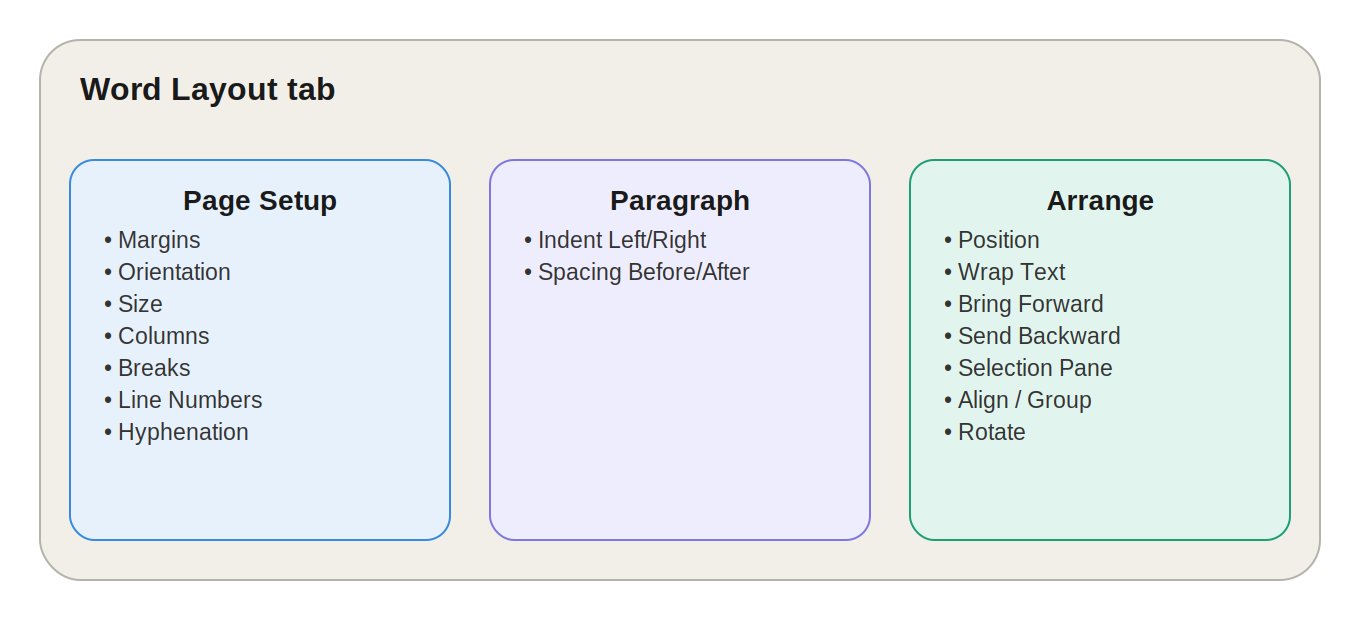
MS Word Ribbon में Layout Tab, Design Tab के ठीक बाद आता है। पुराने Word versions (जैसे Word 2007-2010) में इसे Page Layout Tab कहा जाता था।
जहाँ Design Tab document की overall visual theme (Colors, Fonts, Watermark) को नियंत्रित करता है, वहीं Layout Tab document की physical page structure — यानी Margins, Orientation, Spacing, Columns और Objects की Positioning — को कंट्रोल करता है।
Layout Tab के तीन मुख्य Groups होते हैं:
- Page Setup
- Paragraph
- Arrange
आइए इन तीनों को विस्तार से समझते हैं।
1. Page Setup Group
Page Setup Group page की basic structure और dimensions तय करता है। इसमें ये options शामिल हैं: Margins, Orientation, Size, Columns, Breaks, Line Numbers और Hyphenation।
Margins — Page के किनारों की खाली जगह
Margins page के चारों किनारों और content के बीच की दूरी तय करते हैं।
| Margin Type | कब इस्तेमाल करें |
|---|---|
| Normal | सामान्य documents के लिए default |
| Narrow | ज़्यादा content एक ही page पर फिट करना हो |
| Moderate | Balance चाहिए — न बहुत tight, न बहुत loose |
| Wide | Printing के लिए ज़्यादा खाली जगह चाहिए |
Custom Margins से exact measurements (cm/inch में) भी सेट किए जा सकते हैं।
Orientation — Page की दिशा
| Orientation | Layout | कहाँ इस्तेमाल होता है |
|---|---|---|
| Portrait | Height ज़्यादा, Width कम | Letters, Resumes, Reports |
| Landscape | Width ज़्यादा, Height कम | Wide Tables, Charts, बड़े Diagrams |
Size — Paper Size चुनना
आम paper sizes: A4, Letter, Legal, A5। भारत में office documents और printing के लिए A4 सबसे ज़्यादा इस्तेमाल होता है।
Columns — Text को Vertical Sections में बांटना
Columns option text को One, Two, Three, Left, Right जैसे layouts में divide करता है। More Columns से custom Column Width, Spacing और संख्या सेट की जा सकती है।
इस्तेमाल: Newsletters, Brochures, Magazines, Newspaper-style articles।
Breaks — Content को Divide करना
| Break Type | काम |
|---|---|
| Page Break | Content नए page से शुरू करता है |
| Column Break | Content अगले column से शुरू करता है |
| Text Wrapping Break | Object के आसपास text wrapping control करता है |
| Section Break (Next Page / Continuous / Even / Odd) | Document के एक हिस्से में अलग Orientation, Margins, Columns या Header/Footer लागू करने देता है |
💡 Practical Example: अगर पूरी report Portrait में है लेकिन बीच में एक बड़ी table को Landscape में दिखाना है, तो Section Break से सिर्फ उस हिस्से को Landscape बनाया जा सकता है।
Line Numbers
हर line के पास sequential numbers दिखाता है — Legal Documents, Scripts, Code Reviews और Technical Documents में उपयोगी।
Hyphenation
लंबे words को line के अंत में hyphen (-) से break करता है, जिससे Justified Text ज़्यादा balanced और साफ दिखता है।
2. Paragraph Group
यह group paragraph की Indentation और Spacing को जल्दी कंट्रोल करने के options देता है:
- Indent Left / Indent Right — Paragraph को left/right margin से अंदर की ओर shift करता है
- Spacing Before / Spacing After — Paragraph के ऊपर और नीचे कितनी खाली जगह होगी, यह तय करता है (value आमतौर पर Points में)
📌 यह headings और paragraphs के बीच proper visual spacing बनाए रखने के लिए बहुत उपयोगी है।
3. Arrange Group
Arrange Group document में मौजूद Pictures, Shapes, Text Boxes और SmartArt जैसे objects की positioning और layering कंट्रोल करता है।
Position और Wrap Text
Position object को page के Top, Bottom, Left, Right या Center पर fix करता है। Wrap Text तय करता है कि object के आसपास text कैसे बहेगा:
| Wrap Style | असर |
|---|---|
| In Line with Text | Image टेक्स्ट की तरह लाइन के साथ चलती है |
| Square | Text object के rectangular boundary के आसपास दिखता है |
| Tight | Text object के shape के करीब flow करता है |
| Through | Text object के transparent हिस्सों से flow करता है |
| Top and Bottom | Text केवल ऊपर-नीचे दिखता है |
| Behind Text | Object text के पीछे चला जाता है |
| In Front of Text | Object text के ऊपर दिखता है |
Bring Forward / Send Backward
Overlapping objects की stacking order बदलने के लिए — किसी object को आगे या पीछे भेजने के लिए।
Selection Pane
Document में मौजूद सभी objects की list दिखाता है, जिससे उन्हें आसानी से Select, Hide/Show और Reorder किया जा सकता है — खासकर तब जब बहुत सारे overlapping objects हों।
Align और Group
- Align: Objects को Left/Center/Right/Top/Middle/Bottom align करता है; Distribute Horizontally/Vertically से objects के बीच equal spacing बनती है।
- Group: Multiple objects (जैसे flowchart के shapes) को एक unit में combine करता है, ताकि उन्हें एक साथ Move, Resize और Format किया जा सके।
Rotate
Object को 90° Left/Right rotate या Horizontal/Vertical flip करने के लिए।
Design Tab vs Layout Tab vs Home vs Insert
| Tab | मुख्य कार्य | Example |
|---|---|---|
| Design | Overall Visual Theme | Colors, Fonts, Watermark |
| Layout | Physical Page Structure | Margins, Orientation, Columns |
| Home | Text Formatting | Bold, Font, Alignment |
| Insert | New Elements Add करना | Table, Picture, Chart |
Layout Tab के Practical Use Cases
| Use Case | कौन-सा Feature काम आता है |
|---|---|
| Print-Ready Documents (Reports, Resumes) | Margins, Orientation, Size |
| Newsletters | Columns (Two/Three) |
| बड़ी Tables | Landscape Orientation (Section Break के साथ) |
| Images के साथ Text Layout | Position + Wrap Text |
| Flowcharts / Diagrams | Align + Group + Rotate |
| Long Reports / Books | Section Breaks (अलग-अलग formatting के लिए) |
10 One-Liner Question-Answer
- MS Word Layout Tab का मुख्य उपयोग क्या है? → Page की physical structure और objects की positioning मैनेज करना।
- पुराने Word versions में Layout Tab को क्या कहते थे? → Page Layout Tab।
- Layout Tab के मुख्य Groups कौन-कौन से हैं? → Page Setup, Paragraph और Arrange।
- Page की direction बदलने के लिए कौन-सा option है? → Orientation।
- A4 paper size कहाँ से select होता है? → Layout → Size।
- Newspaper-style columns बनाने के लिए कौन-सा option है? → Columns।
- अलग-अलग sections में अलग formatting के लिए क्या इस्तेमाल होता है? → Section Break।
- Image के आसपास text control करने के लिए कौन-सा option है? → Wrap Text।
- Multiple objects को एक unit बनाने के लिए क्या इस्तेमाल होता है? → Group।
- Objects को align करने के लिए कौन-सा option है? → Align।
FAQ:
1. MS Word में Layout Tab क्या है? यह वह Tab है जिससे document की page structure, margins, orientation, size, columns, spacing और object positioning मैनेज की जाती है।
2. Layout Tab में कितने मुख्य Groups होते हैं? तीन — Page Setup, Paragraph और Arrange।
3. Portrait और Landscape में क्या फर्क है? Portrait में page लंबा (vertical) होता है, Landscape में चौड़ा (horizontal) — दोनों Orientation के प्रकार हैं।
4. Margins क्या होते हैं? Page के किनारों और content के बीच की खाली जगह, जिसे Margins option से बदला जा सकता है।
5. Columns का क्या उपयोग है? Text को दो या अधिक vertical sections में बांटना — newsletters और magazine-style documents के लिए उपयोगी।
6. Section Break क्या है? यह document को अलग-अलग हिस्सों में बांटता है ताकि हर हिस्से में अलग Orientation, Margins या Columns लागू हो सकें।
7. Wrap Text क्या करता है? यह तय करता है कि image या object के आसपास text किस तरह flow करेगा।
8. Group और Align में क्या अंतर है? Align objects को सही जगह arrange करता है, जबकि Group कई objects को एक unit में मिलाता है।
9. Selection Pane क्या है? यह document के सभी objects की list दिखाकर उन्हें Select, Hide/Show और Reorder करने में मदद करता है।
10. Layout Tab और Design Tab में क्या अंतर है? Design Tab visual theme (Colors, Fonts, Watermark) कंट्रोल करता है, जबकि Layout Tab physical structure (Margins, Orientation, Columns, Positioning) कंट्रोल करता है।
निष्कर्ष (Conclusion)
Layout Tab MS Word का वह टूल है जो document को सिर्फ खूबसूरत नहीं बल्कि structured, print-ready और professionally organized बनाता है। Margins और Orientation से लेकर Section Breaks और Object Positioning तक — Layout Tab की सही समझ से आप किसी भी report, newsletter, certificate या flowchart को साफ-सुथरे और सटीक तरीके से डिज़ाइन कर सकते हैं।
विज्ञापन / Advertisement
💬 Leave a Comment & Rating